.png)

How to Create the 3 Financial Statements in 6 Steps (Understanding Debits, Credits, and the Full Accounting Flow)
If you’ve ever wondered how your everyday business transactions become a Balance Sheet, an Income Statement, and a Cash Flow Statement, this walkthrough will help everything finally “click.”
In accounting training, you often learn debits and credits on paper. In business, you’re handed accounting software like QuickBooks Online and expected to understand what’s happening behind the scenes. Today, we’ll bridge that gap.
In this step-by-step guide, we’ll record real transactions into QuickBooks Online, examine the journal entries, and then see exactly how each entry flows into the three main financial statements. By the end, you’ll understand how accounting information moves, connects, and tells the financial story of your business.
Understanding Debits and Credits Before We Begin
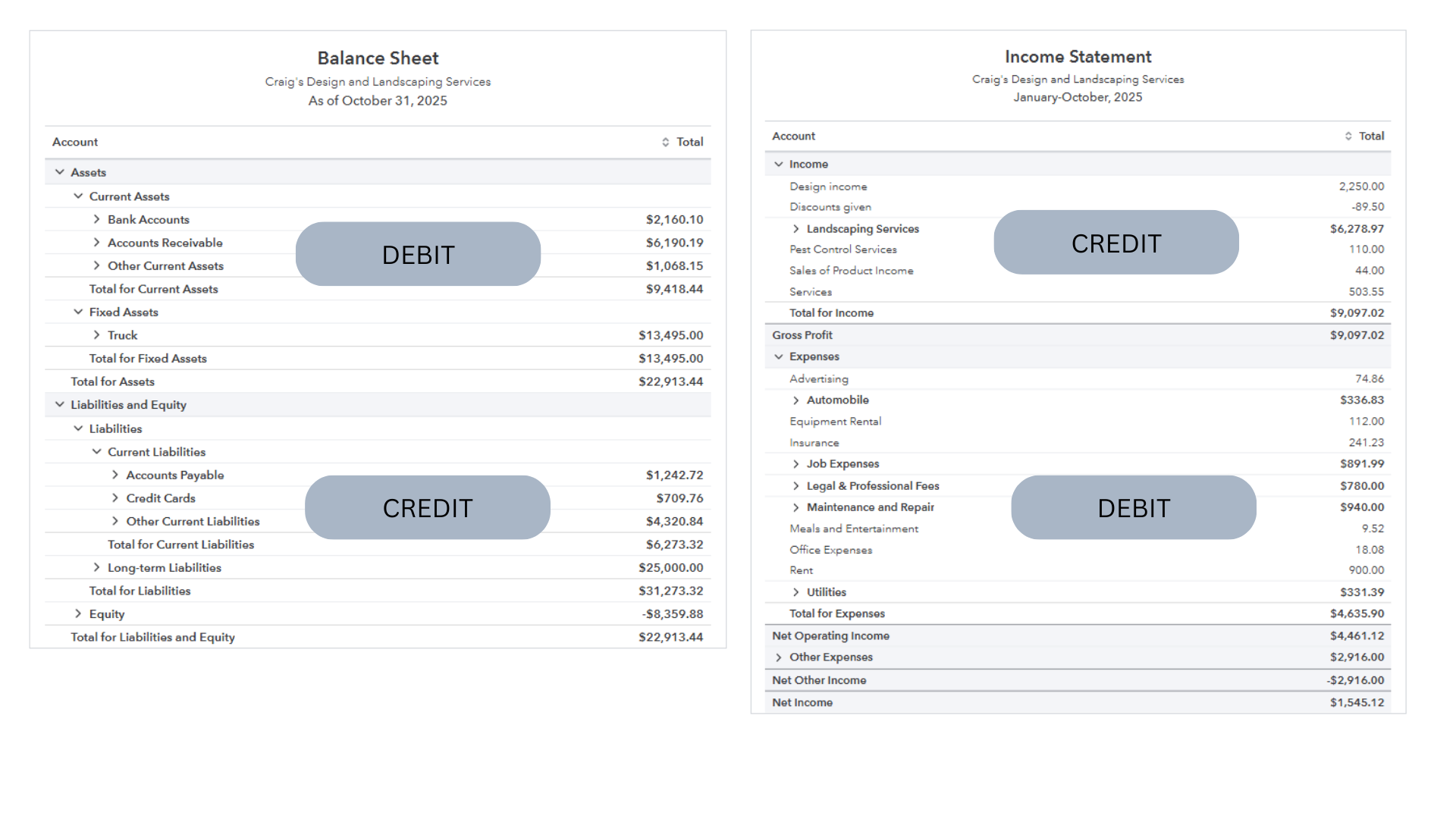
Before entering any transactions, it helps to visualize where debits and credits land in the financial statements:
- Assets (Balance Sheet) increase with debits
- Liabilities and Equity (Balance Sheet) increase with credits
- Income/Revenue (Income Statement) increases with credits
- Expenses (Income Statement) increase with debits
If you increase a debit account, you debit it.
If you increase a credit account, you credit it.
And the reverse is also true when you reduce an account.
This quick refresh ensures the rest of the tutorial makes intuitive sense even if your bookkeeping software is doing the mechanical work for you.
The Sample Company Transactions We’ll Use
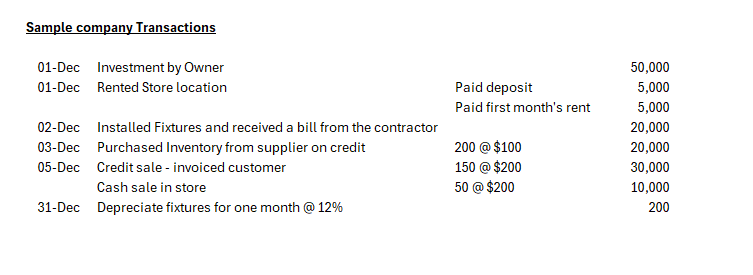
To demonstrate the accounting flow from start to finish, we’ll enter a simple set of beginning-of-month transactions for a new business. These include an owner investment, paying rent, buying inventory, making a sale on credit, recording cash sales, and entering end-of-month depreciation.
This small collection of entries gives us a complete, realistic picture of how the three statements come together and why each one matters.
Step 1: Record the Owner’s Investment
We begin with a $50,000 deposit into the new business bank account.
QuickBooks generates a journal entry automatically:
- Debit Checking Account (asset increases)
- Credit Owner’s Equity (equity increases)
Immediately, the Balance Sheet reflects this contribution, a foundational movement of money into the business.
Step 2: Pay the Deposit and First Month’s Rent
Next, we record $5,000 for a rental deposit and $5,000 for the first month’s rent. The entry shows:
- Credit Checking Account (asset decreases)
- Debit Deposits (asset increases)
- Debit Rent Expense (expense increases)
This is a great example of a single payment affecting both the Balance Sheet and the Income Statement at the same time.
Step 3: Enter a Bill for Leasehold Improvements
A contractor installs fixtures and invoices the business for $20,000. Because the amount isn’t paid immediately, QuickBooks creates:
- Debit Leasehold Improvements (asset increases)
- Credit Accounts Payable (liability increases)
This transaction affects only the Balance Sheet, no cash and no income statement impact yet.
Step 4: Purchase Inventory on Credit
We then purchase $20,000 of inventory from a supplier, also on credit:
- Debit Inventory (asset increases)
- Credit Accounts Payable (liability increases)
Inventory does not hit the Income Statement until it’s sold. This is a key concept in understanding cost of goods sold
Step 5: Record a Credit Sale to a Customer
A customer is invoiced for $30,000 worth of product. This creates a multi-line entry:
- Debit Accounts Receivable (asset increases)
- Credit Sales Income (income increases)
And (because inventory was sold) QuickBooks also records:
- Debit Cost of Goods Sold (expense increases)
- Credit Inventory (asset decreases)
This is where performance (profit) begins to appear on the Income Statement.
Step 6: Record Cash Sales
A second sale happens in the store for $10,000, paid immediately:
- Debit Checking Account (cash increases)
- Credit Sales Income (income increases)
And again, QuickBooks records the related cost of goods sold automatically.
By now, we have activity affecting all major accounting categories: assets, liabilities, equity, income, and expenses.
Step 7: Record Month-End Depreciation
Finally, we make a journal entry to depreciate the leasehold improvements:
- Debit Depreciation Expense
- Credit Accumulated Amortization (contra-asset)
This spreads out the cost of long-term assets over time, ensuring expenses more accurately match the period they benefit.
Seeing the Impact: Trial Balance, Income Statement, and Balance Sheet
With all transactions recorded, the Trial Balance provides a clean summary of all debit and credit totals.
From there, we can run the:
Income Statement (Profit & Loss)
- Sales: $40,000
- Cost of Goods Sold: $20,000
- Gross Profit: $20,000
- Rent + Depreciation: $5,000 + depreciation entry
- Net Income: $14,800
This shows how much the business earned from operations in the first few days of activity.
Balance Sheet
- Bank: $50,000
- Accounts Receivable: $30,000
- Deposits: $5,000
- Inventory: reduced for items sold
- Leasehold Improvements: adjusted for depreciation
- Accounts Payable: $40,000
- Equity + Net Income: reflects the owner investment and early profit
Everything balances which is always the best sign of accurate entries.
Understanding the Cash Flow Statement
Here is where everything “clicks” for most learners.
Despite generating $14,800 in profit, the business still has:
- $40,000 in unpaid bills, and
- $30,000 owed by customers
This is why the business still shows $50,000 in the bank. The owner’s original contribution hasn’t yet flowed out as cash.
The Cash Flow Statement reconciles all of this by adjusting net income for:
- Non-cash items (like depreciation)
- Changes in receivables, payables, and inventory
- Investments and financing
This statement explains why your ending cash doesn’t match your net income, one of the most important concepts in small business finance.
Bringing It All Together
By entering just a few transactions, we have created:
- A complete Balance Sheet
- A meaningful Income Statement
- A functional Cash Flow Statement
If you’ve ever felt unsure where your numbers were coming from, this exercise shows the full flow:
Transactions → Debits & Credits → Trial Balance → Financial Statements
Understanding this link gives you more confidence in your bookkeeping and helps you use your financial reports to make informed decisions.
Stay On Top of Your Numbers
To ensure your reports stay accurate each month, download the free Month-End Checklist below. It’s the exact process I use when reviewing client files.
Download the Month-End Checklist: https://learn.mycloudbookkeeping.org/small-business-month-end-checklist
Compare QuickBooks Online Plans: https://www.mycloudbookkeeping.org/quickbooks-plan-comparison
Book a Consultation: https://www.mycloudbookkeeping.org/consultation
Still need help?
Check this out.
Let's go!Still need help?
Book a session! We can work together to solve your specific QuickBooks Online questions.
Let's go!Hi, Kerry here from My Cloud Bookkeeping. I work with small businesses and entrepreneurs to help them understand their business finances using QuickBooks Online.
Today, we’re going to look at the three financial statements that you can use to manage your business. If you’re using software, as I am with QuickBooks Online, the normal recording of transactions will create those for you. The statements we’re going to look at are the Balance Sheet, the Income Statement (or Profit and Loss), and the Cash Flow Statement.
If you’re studying accounting or bookkeeping, you may be learning about debits and credits, and then all of a sudden you’re given accounting software. You don’t really understand what’s happening behind the scenes. So we’re going to walk through some transactions together, understand the debits and credits, and then see how this flows through to your three main reports.
First, a quick refresher on where the debits and credits land in your reports. On the Balance Sheet, the assets section consists of accounts that are all debits. Your liabilities and equity are credits. On the Income Statement, your income is credits, and the expenses are all debits.
Anytime we want to increase a debit amount, we debit it. Anytime we want to increase a credit amount, we credit it. And of course, the reverse is true. If we want to reduce the assets, then we are crediting the amount. If we want to reduce our liabilities, such as paying down debt, that would be a debit entry. And if we wanted to reduce income, that would be a debit to what is otherwise a credit. Hopefully that isn’t more confusing than helpful — it’s just a quick refresher before we start looking at the transactions we’re going to enter.
I’ve selected some very simple transactions that we’ll enter into QuickBooks. It’s for the sample company, and it gives you an idea of what these look like behind the scenes. If you’re in accounting school, you’re learning debits and credits but often not how to do these entries within accounting software. Or perhaps you’re a bookkeeper using the software and you’re interested in seeing how those debits and credits look behind the scenes.
Here are the transactions we’ll enter:
On December 1st, the owner invests $50,000 into the business. On that same day, the business opens a bank account, rents a store location, pays a deposit, and pays the first month’s rent. The next day, a contractor installs fixtures and issues a bill — not paid yet. The following day, we purchase inventory from a supplier on credit — also not yet paid.
On December 5th, the store opens and we make a $150 credit sale (invoiced), and $10,000 of cash sales in the store. At the end of the month, we depreciate our fixtures and record that journal entry.
This selection of transactions gives us the opportunity to enter a variety of activity inside QuickBooks and see the journal entries that are generated.
We start by recording the bank deposit for the initial investment. When we enter this transaction, QuickBooks debits the checking account and credits the owner contribution equity account. The bank increases — it’s a debit — and equity increases with a credit.
Next, we record the payment for the rental deposit and first month’s rent. We create an expense and allocate $5,000 to deposits (an asset) and $5,000 to rent expense. The checking account is credited, reducing cash. The deposit asset increases with a debit, and rent expense increases with a debit.
Then we enter a bill from the contractor for leasehold improvements. We choose the correct vendor and allocate the amount to the leasehold improvements account. When we review the journal entry, we see a credit to accounts payable and a debit to the asset account for leasehold improvements.
Next, we purchase inventory from our supplier on credit. We enter a bill, allocate the cost to the inventory asset, and QuickBooks records a debit to inventory and a credit to accounts payable.
On December 5th, we create an invoice for a customer who purchases $30,000 of product. The journal entry shows a debit to accounts receivable and a credit to sales income. Then there is a second part of the entry: inventory is reduced with a credit, and cost of goods sold is debited for $15,000 — the cost of the items sold.
We then record a cash sale using a sales receipt. This automatically records a debit to the checking account and a credit to sales income. QuickBooks also records the reduction of inventory and the cost of goods sold.
At the end of the month, we enter a journal entry to record depreciation. We debit depreciation expense and credit accumulated amortization for the leasehold improvements.
By this point, we’ve completed two steps: gathering the transactions and entering them into the software. Now we can look at the trial balance, which summarizes all the debits and credits generated. It shows the balances for cash, accounts receivable, deposits, leasehold improvements, accumulated amortization, accounts payable, owner contributions, sales, cost of goods sold, rent, and depreciation.
Next, we run the Profit and Loss (or Income Statement), which shows sales of $40,000, cost of goods sold of $20,000, gross profit of $20,000, rent of $5,000, and depreciation. This results in net income of $14,800.
Then we review the Balance Sheet. We still have $50,000 in the bank because we have not paid the $40,000 in accounts payable and we have not yet collected the $30,000 receivable. The Balance Sheet shows assets such as cash, accounts receivable, deposits, and leasehold improvements, along with liabilities like accounts payable, and equity including the owner’s contribution and net income.
Finally, we run the Statement of Cash Flows. It starts with the $14,800 of net income and adjusts for non-cash items and changes in working capital — such as unpaid accounts payable and accounts receivable not yet collected. It also shows the $20,000 investment in leasehold improvements and the $50,000 contribution from the owner. At the bottom, the ending cash balance reconciles to the $50,000 shown on the Balance Sheet.
The Statement of Cash Flows explains why the business could show a profit but still have the full $50,000 in the bank — because large bills are unpaid and sales haven’t yet been collected. This report ties together what happens on the Balance Sheet and Income Statement and shows how cash actually moves.
Does this help you understand what’s happening behind the scenes when you enter transactions into QuickBooks Online? If you’re accustomed to doing things manually, does it give you more confidence when using accounting software? All the same reports are available — the software simply automates the entries for you.
Of course, accuracy is important, and there are ways to ensure everything has been entered and recorded correctly. Download my month-end checklist below to help you stay on track.
This is a higher level of accounting than I normally discuss in my videos. If you’d like to see more like this, let me know in the comments. Be sure to like, subscribe, and I’ll see you in the next video. Cheers.
Hi, Kerry here from My Cloud Bookkeeping. I work with small businesses and entrepreneurs to help them understand their business finances using QuickBooks Online.
Today, we’re going to look at the three financial statements that you can use to manage your business. If you’re using software, as I am with QuickBooks Online, the normal recording of transactions will create those for you. The statements we’re going to look at are the Balance Sheet, the Income Statement (or Profit and Loss), and the Cash Flow Statement.
If you’re studying accounting or bookkeeping, you may be learning about debits and credits, and then all of a sudden you’re given accounting software. You don’t really understand what’s happening behind the scenes. So we’re going to walk through some transactions together, understand the debits and credits, and then see how this flows through to your three main reports.
First, a quick refresher on where the debits and credits land in your reports. On the Balance Sheet, the assets section consists of accounts that are all debits. Your liabilities and equity are credits. On the Income Statement, your income is credits, and the expenses are all debits.
Anytime we want to increase a debit amount, we debit it. Anytime we want to increase a credit amount, we credit it. And of course, the reverse is true. If we want to reduce the assets, then we are crediting the amount. If we want to reduce our liabilities, such as paying down debt, that would be a debit entry. And if we wanted to reduce income, that would be a debit to what is otherwise a credit. Hopefully that isn’t more confusing than helpful — it’s just a quick refresher before we start looking at the transactions we’re going to enter.
I’ve selected some very simple transactions that we’ll enter into QuickBooks. It’s for the sample company, and it gives you an idea of what these look like behind the scenes. If you’re in accounting school, you’re learning debits and credits but often not how to do these entries within accounting software. Or perhaps you’re a bookkeeper using the software and you’re interested in seeing how those debits and credits look behind the scenes.
Here are the transactions we’ll enter:
On December 1st, the owner invests $50,000 into the business. On that same day, the business opens a bank account, rents a store location, pays a deposit, and pays the first month’s rent. The next day, a contractor installs fixtures and issues a bill — not paid yet. The following day, we purchase inventory from a supplier on credit — also not yet paid.
On December 5th, the store opens and we make a $150 credit sale (invoiced), and $10,000 of cash sales in the store. At the end of the month, we depreciate our fixtures and record that journal entry.
This selection of transactions gives us the opportunity to enter a variety of activity inside QuickBooks and see the journal entries that are generated.
We start by recording the bank deposit for the initial investment. When we enter this transaction, QuickBooks debits the checking account and credits the owner contribution equity account. The bank increases — it’s a debit — and equity increases with a credit.
Next, we record the payment for the rental deposit and first month’s rent. We create an expense and allocate $5,000 to deposits (an asset) and $5,000 to rent expense. The checking account is credited, reducing cash. The deposit asset increases with a debit, and rent expense increases with a debit.
Then we enter a bill from the contractor for leasehold improvements. We choose the correct vendor and allocate the amount to the leasehold improvements account. When we review the journal entry, we see a credit to accounts payable and a debit to the asset account for leasehold improvements.
Next, we purchase inventory from our supplier on credit. We enter a bill, allocate the cost to the inventory asset, and QuickBooks records a debit to inventory and a credit to accounts payable.
On December 5th, we create an invoice for a customer who purchases $30,000 of product. The journal entry shows a debit to accounts receivable and a credit to sales income. Then there is a second part of the entry: inventory is reduced with a credit, and cost of goods sold is debited for $15,000 — the cost of the items sold.
We then record a cash sale using a sales receipt. This automatically records a debit to the checking account and a credit to sales income. QuickBooks also records the reduction of inventory and the cost of goods sold.
At the end of the month, we enter a journal entry to record depreciation. We debit depreciation expense and credit accumulated amortization for the leasehold improvements.
By this point, we’ve completed two steps: gathering the transactions and entering them into the software. Now we can look at the trial balance, which summarizes all the debits and credits generated. It shows the balances for cash, accounts receivable, deposits, leasehold improvements, accumulated amortization, accounts payable, owner contributions, sales, cost of goods sold, rent, and depreciation.
Next, we run the Profit and Loss (or Income Statement), which shows sales of $40,000, cost of goods sold of $20,000, gross profit of $20,000, rent of $5,000, and depreciation. This results in net income of $14,800.
Then we review the Balance Sheet. We still have $50,000 in the bank because we have not paid the $40,000 in accounts payable and we have not yet collected the $30,000 receivable. The Balance Sheet shows assets such as cash, accounts receivable, deposits, and leasehold improvements, along with liabilities like accounts payable, and equity including the owner’s contribution and net income.
Finally, we run the Statement of Cash Flows. It starts with the $14,800 of net income and adjusts for non-cash items and changes in working capital — such as unpaid accounts payable and accounts receivable not yet collected. It also shows the $20,000 investment in leasehold improvements and the $50,000 contribution from the owner. At the bottom, the ending cash balance reconciles to the $50,000 shown on the Balance Sheet.
The Statement of Cash Flows explains why the business could show a profit but still have the full $50,000 in the bank — because large bills are unpaid and sales haven’t yet been collected. This report ties together what happens on the Balance Sheet and Income Statement and shows how cash actually moves.
Does this help you understand what’s happening behind the scenes when you enter transactions into QuickBooks Online? If you’re accustomed to doing things manually, does it give you more confidence when using accounting software? All the same reports are available — the software simply automates the entries for you.
Of course, accuracy is important, and there are ways to ensure everything has been entered and recorded correctly. Download my month-end checklist below to help you stay on track.
This is a higher level of accounting than I normally discuss in my videos. If you’d like to see more like this, let me know in the comments. Be sure to like, subscribe, and I’ll see you in the next video. Cheers.
Still need help?
Check this out.
Let's go!Still need help?
We have what you need. Check out our courses and free resources to get more help managing your finances.
Let's go!